










Entered The IP Address But Still Can’t Access The Router’s Backend Page?
Someone asked: I want to log in to the router’s backend to modify WiFi settings, but I can’t open the router’s management page even after entering the IP address. What’s the problem?
Today, we’ll share some practical solutions. Follow these steps to troubleshoot:
Verify the IP Address
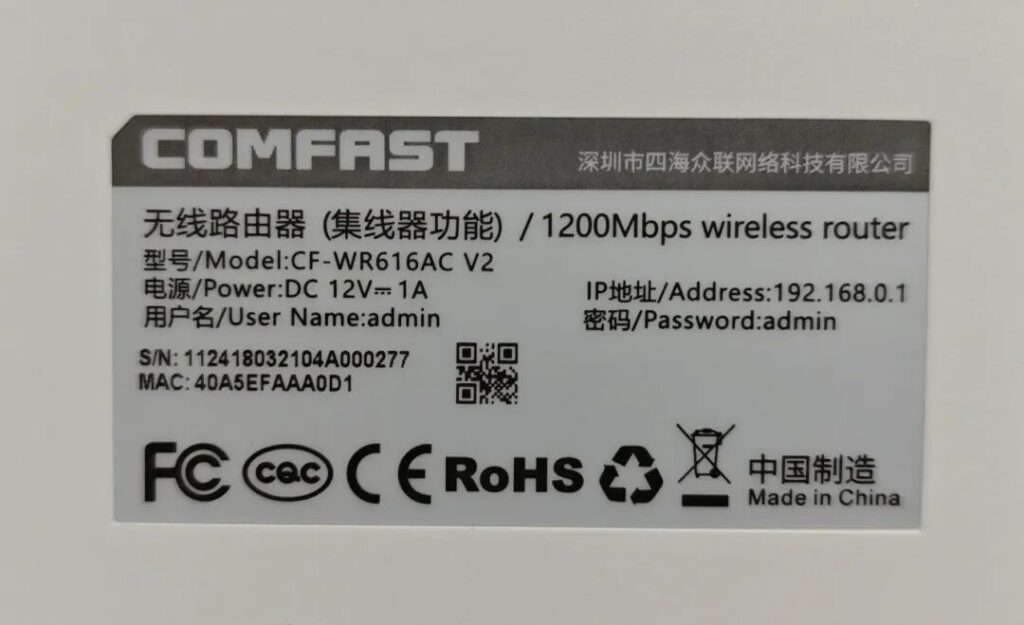
First, make sure you’ve obtained the correct router IP address. You can check the side or bottom of the router for a sticker. The sticker usually clearly indicates the router’s IP address.
If the sticker on an older router is blurred or missing, contact the brand’s customer service or your carrier to verify the address.
Confirm the unified network.
Your device must be on the same network as the router to access the router backend. You can choose to connect to the router’s WiFi or a wired connection.
If you are using a computer with a wired connection to the router, be sure to connect the router’s LAN port to the computer’s Ethernet port, not directly to the optical modem.
Enter the IP address to access the router backend.
Open the search box at the top of your browser and enter the IP address exactly as labeled or provided by customer service. Do not enter any additional characters. Press Enter. The router backend login page will usually appear directly.
If you still cannot access the router backend after following the above steps, try these steps:
Troubleshooting Browser Issues
Improper browser settings or excessive cache may cause the router backend page to not open.
Open your browser, go to “Settings – Privacy & Security”, click “Clear Cached Data”, check “Cache” and “Cookies”, and confirm the clearing. After clearing the cache, re-enter your IP address and try logging in. You can also choose to log in directly from a different browser.
Checking the Router Status
A temporary router malfunction may cause IP access failure and prevent the backend page from opening.
Unplug the router, wait for one minute, then plug it back in and observe the router’s indicator lights. Once the status returns to normal, wait two minutes before re-opening the browser and entering the IP address to try logging in.
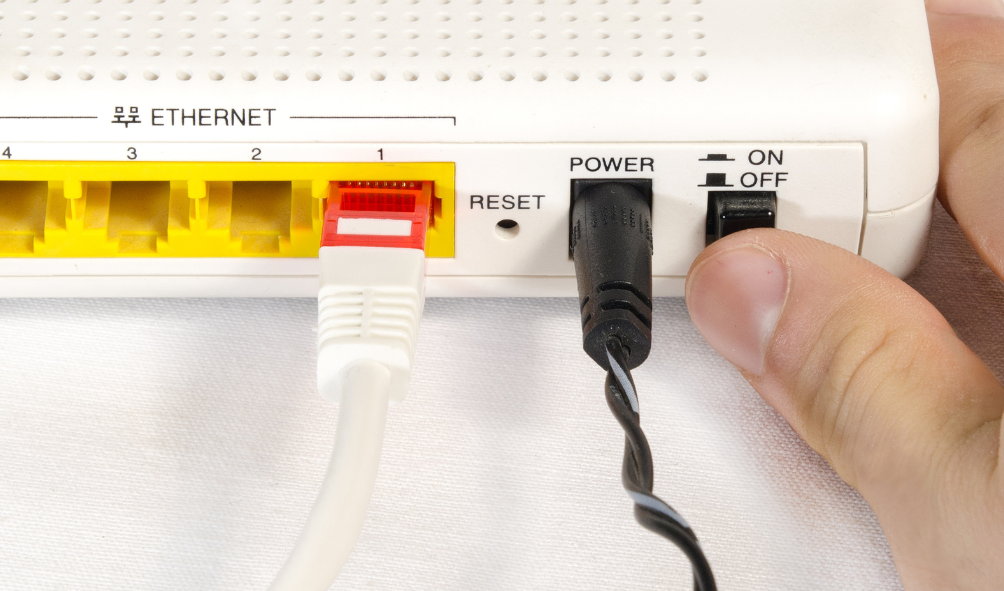
If restarting the router still doesn’t work, you can restore it to factory settings. Use a toothpick or thick needle to press and hold the “Reset” button on the router for five seconds, then release it. The router will reset (Wi-Fi will need to be reconfigured). Then enter the IP address and try logging in.
This should generally resolve the issue of the router backend page being blocked.