










Method 1: Download and Install Driver from Official Website (For Computers with Internet Access)
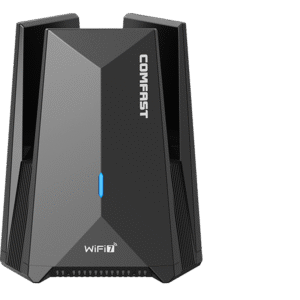
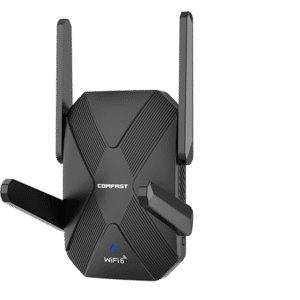
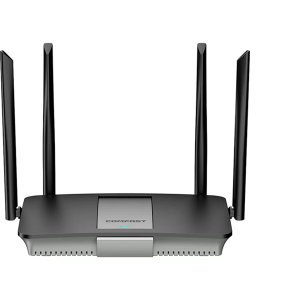
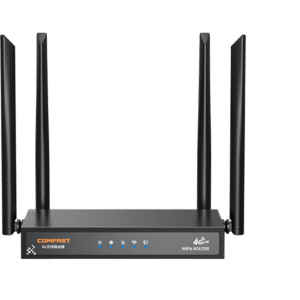
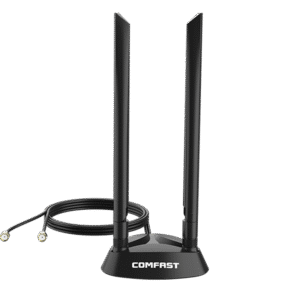
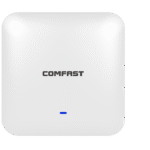
Step 1: Confirm the Adapter Model
Step 2: Visit the Official Website to Download the Driver
1.Open your browser and enter the official COMFAST website address.
2.Click Download Center on the top navigation bar of the homepage.
3.Enter the adapter model in the search box and click Suche to find the download link for the latest corresponding driver.
4.Important Note: Select the version compatible with your computer’s operating system (e.g., Windows 10 64-bit, Windows 7 32-bit, macOS 12, etc.). Installing an incompatible driver will cause installation failure. If you cannot find the driver for your model, contact the official website customer service for support.
Step 3: Install the Driver and Verify the Result
1.Click the download link and save the driver installation package to your computer desktop for easy access.
2.After the download is complete, double-click the installation package and follow the wizard prompts to complete the installation step by step. Then restart your computer.
3.After restarting, right-click This PC or My Computer, select Properties, and go to Device Manager.
4.Expand the Network adapters category. If you can see the COMFAST wireless adapter model listed without any yellow exclamation marks or question marks, the driver has been installed successfully. You can now plug in the adapter and try connecting to the network.
Notes
1.Ensure your computer has administrator privileges during driver installation to avoid installation failure due to insufficient permissions.
2.For desktop computers, it is recommended to plug the USB wireless adapter into a rear USB port of the host. Rear ports provide more stable power supply, which reduces the risk of driver recognition errors.
3.After successful installation, save the driver installation package on your computer for future use, such as after reinstalling the operating system.
4.If the target computer has no internet access, download the driver using another connected device and transfer it to the target computer for installation.
Method 2: Install Driver via Offline Installation Package (For Computers Without Internet Access)
Step 1: Prepare the Offline Driver Package
1.Use a network-connected device (e.g., another computer, smartphone) to visit the COMFAST official Download Center.
2.Search for and download the driver version compatible with the target computer’s operating system.
3.Transfer the downloaded installation package to the offline computer via a USB flash drive or other storage devices.
Step 2: Install the Offline Driver
1.Plug the USB flash drive into the offline computer and copy the driver installation package to the desktop.
2.Double-click the installation package, run it as administrator, and follow the wizard to complete the installation.
3.Restart the computer and verify the driver status in Device Manager according to the steps in Method 1.